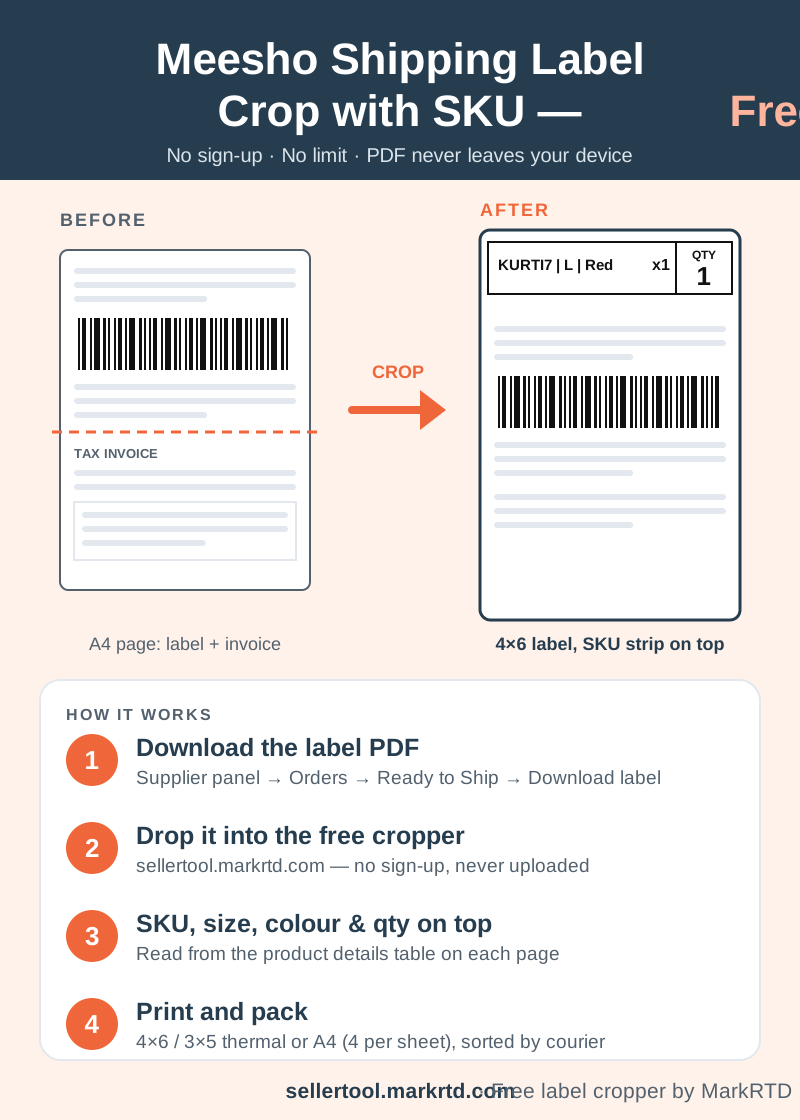
Crop Meesho label PDFs to 4×6, 3×5 or A4 for free, with SKU, size, colour and qty from the order table printed on top of every label.
Meesho Shipping Label Crop with SKU, Free
Meesho gives suppliers one A4 page per order: the shipping label on top and the tax invoice below it. A thermal printer needs only the label, and the label alone doesn’t show which design, size or colour goes in the polybag. Cutting pages by hand and checking each order on the supplier panel slows down every dispatch.
This free Meesho shipping label crop tool does both jobs in one go. Drop the label PDF into the box at the top of this page and every label comes out on its own 4×6 or 3×5 inch page, or four to an A4 sheet. A bold strip on top of each label shows the SKU, size, colour and quantity of that order, read from the order table on the same page.
It is free with no sign-up and no limit on files or labels. The PDF is processed inside your browser and never uploaded, so your customers’ names and addresses stay on your device.
How to Crop Meesho Labels with SKU in 4 Steps
Step 1: In the Meesho supplier panel, go to Orders → Ready to Ship, select the orders and click Download label. You get one PDF, usually named Sub_Order_Labels.
Step 2: Drop the PDF into the box above, or tap to pick it. Add several PDFs if you downloaded labels in parts; Flipkart and Amazon label files can go in the same batch.
Step 3: Keep “SKU & qty on each label” turned on, choose 4×6/3×5 thermal or A4 with 4 labels per sheet, and pick a sort order. Press Crop labels.
Step 4: Check the preview, download the PDF and print at actual size (100%). Scan one test label with your phone before printing the whole batch.
How the free Meesho shipping label crop with SKU works
What the SKU Strip on a Meesho Label Shows
Every Meesho label page has a product details table with the SKU, size, quantity, colour and order number. The cropper reads that table and prints one line per product above the label: your SKU code, then the size and colour, with the quantity such as x1 or x2 at the end.
The box on the right shows the total units and turns black when there is more than one unit, so a pack-of-two order can’t be missed at the packing table. Orders with up to four products list each one; above that, three are shown with a note to see the invoice for the rest.
If the SKU couldn’t be read on some pages, the result tells you how many labels are affected, so you only check those by hand. The label, barcode and address are not changed: they are cut out exactly as Meesho made them.
Why Add the SKU to Meesho Labels
Most wrong-item complaints start at the packing table: two designs that look alike, a size mixed up, or a pack of two sent as one. With the SKU, size, colour and quantity printed on the label itself, the person packing doesn’t need the supplier panel or a printed order list. They read the strip, pick the item and seal the parcel.
It also helps when someone new joins your team. They don’t need to know how to read a Meesho invoice; the strip says exactly what goes in, and the black quantity box warns them when more than one piece is needed.
Sort Meesho Labels by Courier and SKU
Meesho orders go out with several couriers, and a mixed pile of parcels makes the pickup handover slow. Sort the cropped labels by courier, by SKU, or by courier and then SKU, which is the default. Each courier’s parcels come out together, and within each courier the same products sit next to each other, so you can pack them in one go.
The picklist lists every SKU with its size, colour, number of orders and total quantity. Print it as a PDF for whoever pulls stock, or download the CSV for Excel.
Meesho Label with or without the Invoice
You decide what happens to the invoice half of each page: leave it out, get a separate A4 PDF with two cropped invoices per sheet, get a separate thermal PDF, or put each invoice right after its label. The Meesho label crop with invoice page opens with that last option already set.
Each batch you crop stays in this browser for 24 hours under Recent crops, so you can download it again if a print fails. It is then deleted automatically.
Printer, Paper and Barcode Tips
Use 4×6 inch thermal labels in a thermal printer, or plain A4 sheets in any inkjet or laser printer, where four labels fit on a page. Always print at actual size, not Fit to page, so the barcode keeps its width and scans first time at pickup.
Below this article you will find more tools for Meesho sellers: a shipment report of the day’s orders, thank-you cards with each customer’s name read from the label, the Meesho price calculator for your selling price, and a polybag size calculator for packing.
Frequently asked questions
Is Meesho label crop with SKU free?
Yes. Cropping, the SKU strip, sorting and the picklist are free with no sign-up and no limit.
Where do I download the Meesho label PDF?
In the Meesho supplier panel: Orders → Ready to Ship → Download label.
Does Meesho accept labels cropped to 4×6?
Cropping only cuts out the same label Meesho gave you and keeps its barcode. Print one test label and scan it with your phone before printing the batch.
Why is the SKU missing on some labels?
The SKU comes from the product details table on each page. If a page has no readable table, the result tells you how many labels are affected.
Is this tool made by Meesho?
No. It is an independent tool by MarkRTD and is not connected to Meesho.