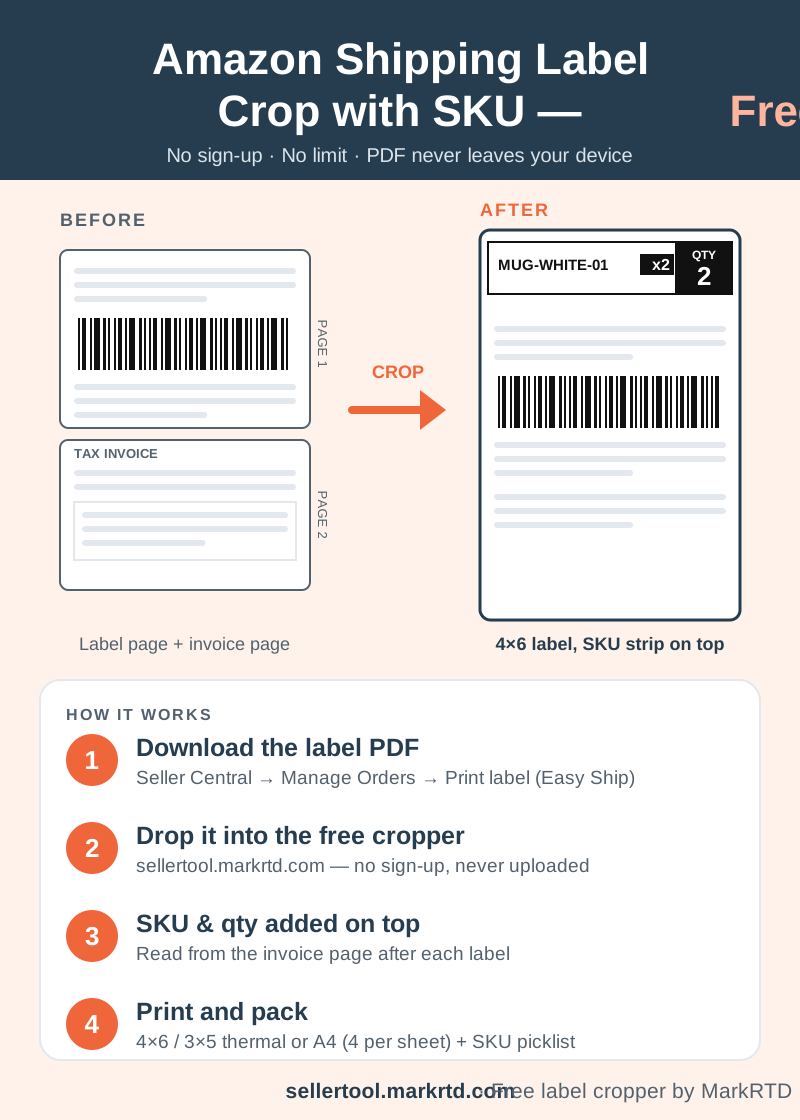
Crop Amazon Easy Ship labels to 4×6, 3×5 or A4 for free, with the SKU and qty from each order’s invoice printed on top of its label.
Amazon Shipping Label Crop with SKU, Free
When you ship Amazon Easy Ship orders yourself, Seller Central gives you one PDF for the whole batch. Every order takes a label page followed by its tax invoice page, and the label says nothing about what goes inside the box. On a busy day that means printing twice the paper you need and checking each order on screen before you pack it.
This free Amazon shipping label crop tool fixes both problems. Drop the Easy Ship PDF into the box at the top of this page and every label comes out on its own 4×6 or 3×5 inch page for a thermal printer, or four to an A4 sheet for a normal printer. On top of each label it prints a bold strip with the SKU and quantity of that order, so your packer can read what to pack straight off the label.
There is no sign-up, no install and no limit on files. The PDF is read inside your browser and is not uploaded to any server, so customer names and addresses stay on your phone or computer.
How to Crop Amazon Easy Ship Labels with SKU in 4 Steps
Step 1: In Seller Central, open Manage Orders, select your Easy Ship orders and print the label. Save the PDF Amazon gives you and keep the invoice pages in it, because that is where the SKU comes from.
Step 2: Open this page on your phone or laptop and drop the PDF into the upload box, or tap to choose it. You can add several PDFs at once, and Meesho or Flipkart label files can go in the same batch.
Step 3: Leave “SKU & qty on each label” turned on, pick 4×6/3×5 thermal or A4 with 4 labels per sheet, and choose how to sort the labels. Then press Crop labels.
Step 4: Check the preview of the first labels, download the PDF and print it at actual size (100%). Scan one printed barcode with your phone before you print the whole batch.
How the free Amazon shipping label crop with SKU works
Where the SKU on an Amazon Label Comes From
An Easy Ship label page is a single image. There is no text on it that a tool can read, which is why most croppers can only cut it out. This cropper reads the tax invoice page that follows each label instead. The invoice lists every item in the order with its SKU and quantity, and those details are printed in the strip on top of the matching label.
Each line in the strip shows a SKU and its quantity, such as x1 or x2, and a quantity above one is printed white on black. The box on the right shows the total units and also turns black when an order has more than one unit, so multi-quantity orders stand out at the packing table. An order with several products lists each SKU on its own line; above four products, the strip shows three and points to the invoice for the rest.
The label itself is not redrawn. The barcode, the address and Amazon’s own text stay exactly as Amazon made them; the cropper only cuts the label out and adds the strip above it.
Picklist and SKU Sorting for Amazon Orders
Sort the cropped labels by SKU and every order of the same product comes out together, so you can pack one product at a time. The picklist shows each SKU with its number of orders and total quantity. Download it as a PDF to print for whoever pulls stock, or as a CSV to open in Excel or Google Sheets.
Because the Easy Ship label is an image, the courier shows as Amazon (ATS) in the summary, and COD or prepaid is not counted for Amazon orders. Nothing changes on the label you print.
Keep the Amazon Invoice or Leave It Out
Some sellers put an invoice in every parcel and others never print it. Choose what suits you: labels only, the invoices as a separate cropped A4 or thermal PDF, or each invoice placed right after its label so the two print together. The Amazon label crop with invoice page opens with that last option already set.
Cropped PDFs stay in this browser for 24 hours under Recent crops, so you can download a batch again if the printer jams. After that they are deleted automatically.
Which Amazon Labels Work
This tool is built and tested on Amazon India Easy Ship label PDFs, the ones you print from Manage Orders. It is not made for FBA box labels or FNSKU product labels. For any other Amazon PDF, set “Finding the label” to Custom box and draw around the label on the first page; the same box is used on every page. Check the SKU strip on a few labels before printing, as other layouts may have no invoice it can read.
Below this article you will find more tools for Amazon sellers: a shipment report of the day’s orders, thank-you cards with each customer’s name, the Amazon price calculator for your profit after fees, and a polybag size calculator for packing.
Frequently asked questions
Is the Amazon label crop with SKU free?
Yes. Cropping, the SKU strip, sorting and the picklist are free with no sign-up and no limit on files.
Why is there no SKU on my cropped Amazon label?
The SKU is read from the invoice page after each label. Use the Easy Ship PDF that has both the labels and their invoices.
Will the Amazon barcode still scan?
Yes. The label is cut out as it is, not redrawn. Print one test label at actual size and scan it before printing the batch.
Can I crop Amazon, Meesho and Flipkart labels together?
Yes. Each file is read with its own layout and all the labels come out in one PDF.
Is this tool made by Amazon?
No. It is an independent tool by MarkRTD and is not connected to Amazon.